How to blur faces and remove location data from a photo
Step by step: blur every face, strip the GPS location and other hidden metadata, and check a photo is safe to share, in your browser or on your phone.
- Published
- Updated
- Reading time
- 6 min read
On this page
Definition
A shelf photo for head office, a display photo for a supplier, a store photo for social media: each one usually shows a few people and carries a record of where and when it was taken. We cover what that adds up to in What does a store photo give away?, and the legal side in Are store photos personal data under the GDPR? This guide is the practical part: how to clean a photo before it leaves your hands.
What needs to go
Two kinds of information make a photo personal:
- What you can see. Faces, including people in the background and reflections in glass, plus anything else that identifies someone: name badges, phone screens, receipts, number plates.
- What you can't see. Exif metadata stored in the file: the GPS position when location was on for the camera, the date and time, the make and model of the device, and on some cameras a serial number or an owner's name.
Cleaning a photo means dealing with both. Blurring faces in an app that keeps the original file leaves the location in place, and stripping the metadata leaves every face in view.
Method 1: the free photo privacy check
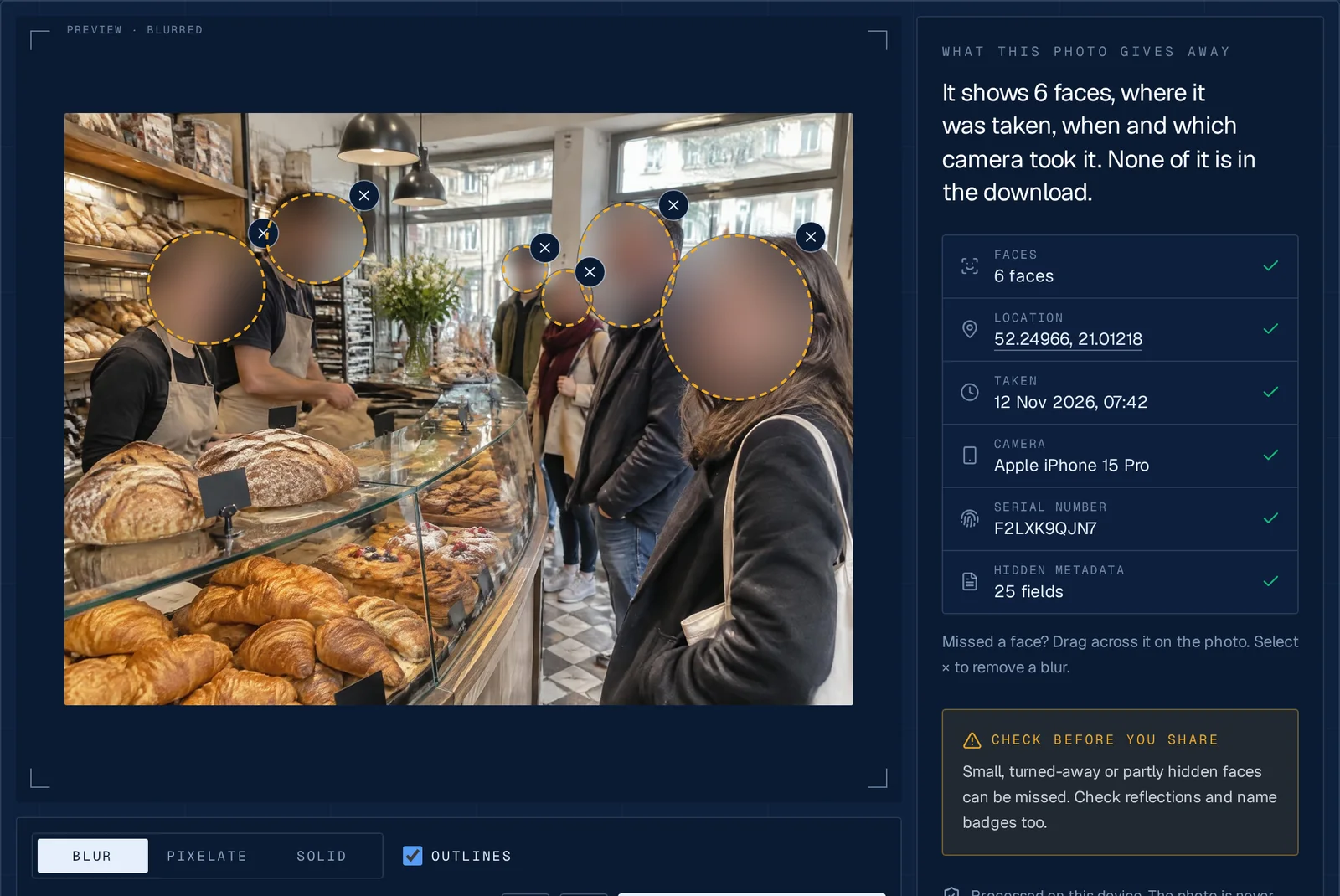
Our photo privacy check handles faces and metadata together. It runs entirely in your browser: the face detector is Google's MediaPipe face detector, running locally with WebAssembly, so the photo is never uploaded.
- Open a photo. Go to the photo privacy check and click Choose a photo, drag a photo onto the page, or paste one from the clipboard. To see how it works first, click Try a sample photo. The first photo takes a few seconds longer while the face detector loads.
- Read what it found. Under What this photo gives away, the tool lists the Faces it found and any Location, Taken time, Camera and Serial number stored in the file, plus the total number of Hidden metadata fields. Select the coordinates to see the spot on a map.
- Check the blurs. Every face it found is blurred and outlined. Select × on an outline to remove a blur that isn't a face. Turn off Outlines to see the photo as it will be saved.
- Blur what it missed. Drag across any part of the photo to blur it by hand: a face in a reflection, a name badge, a screen, a number plate.
- Choose a style. Blur reduces each face to about five blocks across before softening it, Pixelate to about eight hard blocks, and Solid covers it with a solid fill.
- Download. Click Download clean copy. The photo is redrawn from its pixels at full resolution, up to 16 megapixels, and saved as a new file, so none of the Exif metadata goes with it.
Method 2: share without the location from your phone
If you only need to drop the location, your phone can do it when you share.
- iPhone. In Photos, tap the share button, tap Options, and turn off Location. Apple's guide notes that Location Not Included then appears above the Options button.
- Mac. In Photos, select the photos, then choose Image > Location > Hide Location.
- Google Photos. The Share photo locations setting controls whether locations are shared with shared albums (under Album options) and conversations, where it is off by default for new ones. Google notes that if your camera added the location, you can't change or remove it in Google Photos itself.
These settings deal with location only. The faces, and the other metadata, are a separate job.
Method 3: strip metadata on a computer
- Windows. In File Explorer, right-click the photo, choose Properties, open the Details tab and click Remove Properties and Personal Information. The default option creates a copy with every property it can change removed. Microsoft's own tip, written for Windows 7, adds that this does nothing with the contents of the file itself.
- Mac. Preview shows whether a photo carries a location: open it and choose Tools > Show Location Info. It is a quick way to check a file before you send it.
Like the phone settings, these change the metadata and leave the picture as it is. Every face is still in view.
How strong does the blur need to be?
Stronger than it looks. In a 2016 study, researchers trained neural networks to recognise faces hidden with common techniques (McPherson, Shokri and Shmatikov). Faces hidden with YouTube's blur were identified 57.75% of the time among 40 people, against 2.5% by chance. Faces pixelated with 16 × 16 pixel blocks were identified 57.56% of the time among 530 people, against 0.19% by chance. A light blur or a fine mosaic looks anonymous to people and still carries enough for software.
- Make it coarse. Reduce a face to a handful of blocks, not dozens.
- Cover the whole head. Hairline, ears and chin as well as the eyes and mouth.
- Use a solid fill for anything public. It leaves nothing underneath to recover.
A checklist before you share
- Every face is redacted, including people in the background and faces reflected in glass, mirrors and fridge doors.
- Other identifiers are covered: name badges, screens, receipts, number plates, distinctive tattoos.
- The metadata is gone. You are sending a clean copy, not the original file. An email attachment is the file itself, metadata included.
- The redaction suits the audience. A coarse blur for internal reports, a solid fill for anything published.
- You have looked at the result. Open the cleaned copy before it goes anywhere.
Frequently asked questions
How do I blur faces in a photo for free?
Use a tool that finds the faces for you and lets you add any it misses. Our free photo privacy check finds and blurs faces in your browser, lets you drag across anything else to blur it, and downloads a clean copy without the photo's metadata. There is no sign-up and the photo is never uploaded.
How do I remove the location from a photo on iPhone?
When you share from Photos, tap Options and turn off Location. Apple's guide says Location Not Included then appears above the Options button. On a Mac, select the photos in Photos and choose Image, Location, Hide Location.
Does removing metadata blur faces?
No. Settings such as the iPhone Location toggle or Windows' Remove Properties and Personal Information change the file's metadata and leave the picture untouched. Faces, name badges and screens have to be redacted separately.
Is a blurred face anonymous?
Only if the blur is strong. A 2016 study found that neural networks identified faces hidden with YouTube's blur, and with 16 × 16 pixel mosaics, far more often than chance. Use a coarse blur or a solid fill, cover the whole head, and redact other identifiers too.
Can Google Photos remove a location my camera added?
No. Google says that if a location was added automatically by your camera, you can't update or remove it in Google Photos. Its Share photo locations setting controls whether locations are shared with shared albums and conversations.
Sources
- Apple, Personal Safety User Guide, Manage location metadata in Photos
- Apple, Preview User Guide, See where a photo was taken
- Google Photos Help, Understand, find and edit your photos' locations
- Microsoft, TechNet Magazine tip, Remove personal metadata from files to protect your privacy, from Windows 7 Inside Out
- Google AI Edge, MediaPipe face detector
- McPherson, R., Shokri, R. and Shmatikov, V., Defeating Image Obfuscation with Deep Learning (2016)
Keep reading
More from the blog
What do the EU's food waste targets mean for bakeries?
By 2030, EU countries must cut food waste by 30% per person in shops, restaurants and homes and by 10% in manufacturing. What that means for bakery chains, and what Poland, France, Spain and Romania already require.
 Ignacy WielogórskiRead the guide
What does an empty shelf cost?
When shoppers find a product sold out, the shop loses the sale in about four cases out of ten. How to put a number on out-of-stocks, and why sales data hides them.
Ignacy WielogórskiRead the guide